3D Text Studio has a built in 3D Font engine that can create stunning fonts, combine them in creative ways , and also manage a reasonable poly count.
here are the main features of the Font engine
- Topography – the topography operations can be combined in interesting ways.
- Offset / Beveled Offset – grow or shrink the font contour as much as you like
- Outline / Beveled Outline – extract the outline of the font to create interesting effects. the outline is a 3d object so it can be beveled as well
- Smooth/Inflated – smooth the topography and create an inflated loo
- Sharp Mid line (chiseled) – Similar to the H in the history channel logo
- Emboss/Engrave/Border – You can use a contour offset and engrave or emboss the original contour into it, or leave it flat with a border
- Highlight – You can cut the contour and create a 3d mesh that highlights another 3d font mesh
- Assign different materials – to different parts of the mesh ( font face, bevel face, side , etc.)
- Layer based – each font can consist of multiple layer meshes. For example , you can create a simple beveled mesh and then complement it with another beveled mesh of a higher offset.
- Build time baking/Runtime baking/ Dynamic generation – use build time baking for fastest load time, runtime baking to reduce build size or dynamic generation for languages with too many letters (like Chinese)
- Control polygon count – you can control the amount of detail in the input an output contours. Allowing you to manage the 3d font poly count.
- Separate Style from TTF – font styles are create independently of the ttf file. Allowing you to use the same style for different ttf files.
- Multiple Languages – The font engine will work with any ttf file, in any language.
- Place prefabs – place prefabs on top of your 3d meshes
- Use prefabs – to create particle effects or other non standard effects
- UV Unwrapping – Stretched or Fixed. unwrap the side along the u or v axis
- Metrics – control line gap and letter gaps
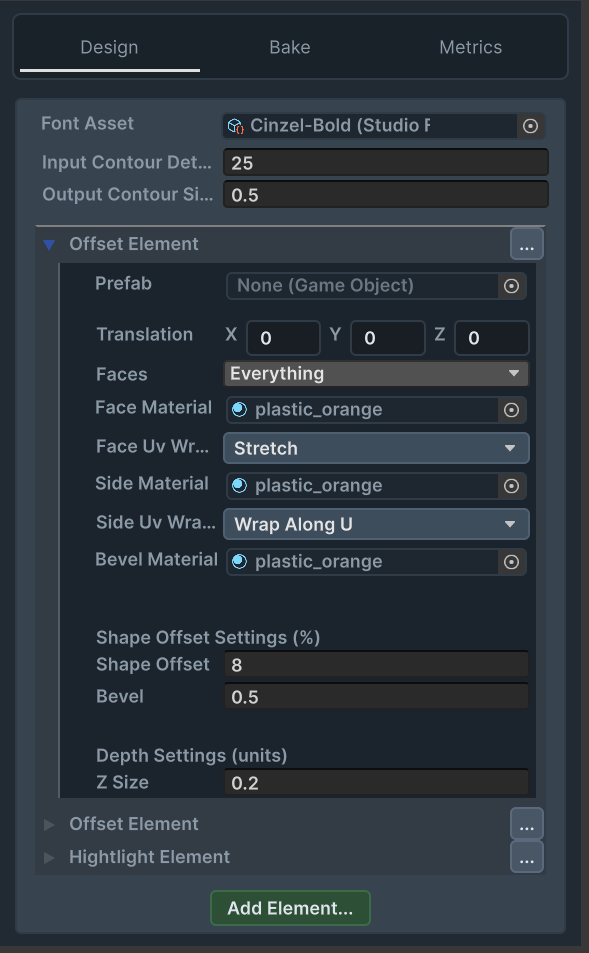
And example of the main 3D Font inspector. It uses the main yellow offset element, another orange offset element as background. And a white highlight element to complement it