when using the animation ruler you can expand each animation bar in order to set it’s parameters :
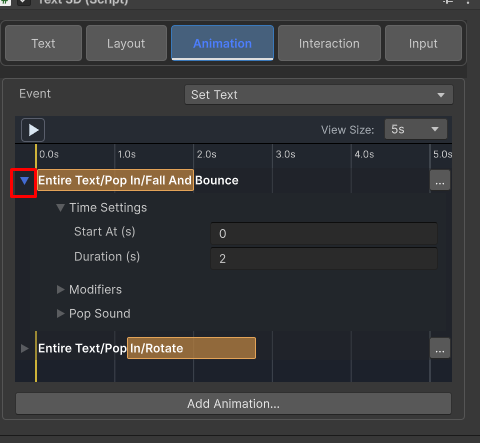
In this article we will go though common parameters and what they do.
Most of them are self explanatory, and there are too many to be covered completely. But these are the common ones:
- Tag Settings – explained here
- Time Settings – Anything related to animation timing , here are the most common parameters:
- Start At – the starting time of the animation on the timeline
- Duration/Total Duration – the total duration of the animation on the timeline
- Duration Mode – When using type in/out or wave animations , where each letter is animated , this allows choosing between a total animation duration or a fixed stagger
- Stagger Delay – When using type in/out or wave animations , where each letter is animated , this is the stagger between each base animation
- Per Unit Duration – When using type in/out or wave animations , where each letter is animated , this sets the duration of the base animation. Note that Per Unit Duration cannot be larger then Total Duration.
- Cycle Time/Average Cycle Time– When using random animations , this sets the time of each animation cycle.
- Randomness – When using random animations , this sets the spread of the animation time. for example if the cycle time is 4 seconds and Randomness is 1 , then the final cycle time is a random number between : 4-1 to 4+1 or 3 to 5
- Pattern Settings –
- Order – the order of which each element of animation is animated.
- Start To End/End To Start – begining with the first element all the way to the last element or vise versa
- Random Order – the order of the animation is random
- Animated Unit – select if the base animation operates on each letter/word or row. Note that rows are logical(wrapping is not considered a row break).
- Slot Mode – when using type in / out animations , you may want to change the behavior of the letter slot. for example if the slot mode is set to Expanding , each letter will push the previous letter until it placed. when slot mode is set to Preserved then the letter slot remains unchanged
- Order – the order of which each element of animation is animated.
- Easing – This determines the easing function of the animation or base animation. You can adjust the easing curve or build a curve using the dialog.
- Audio Clip – You can set the audio clip of the base animation or entire animation
- Audio Clip – the unity audio clip that will be played
- Volume Scale – the volume of the played audio clip
- Pitch – the pitch of the played audio clip
- Start Delay – an inner start delay for the audio clip. you can use this to match the sound to the base animation of a type in/out animation for example
- Modifiers – are any parameters that don’t fall into the previous categories. They are mostly self explanatory. if you have any questions , you can ask at [email protected]