Animation tags allow you to animate only a part of the text instead of all the text.
You may want to have a look at Basics/Tutorials/Tag Animation
It works like this:
Creating a tag inside the text
tags start with a name: <tag=name>
tag end : </tag>
example: <tag=name>some</tag> 3d text
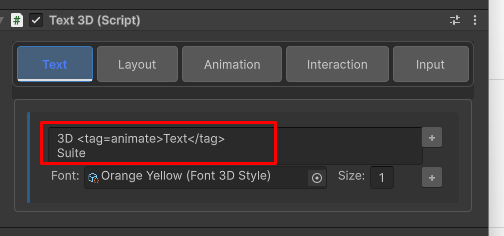
Tag names must contain 2 or more letters , must start with a letter (not a number) and should be specified only with English letters.
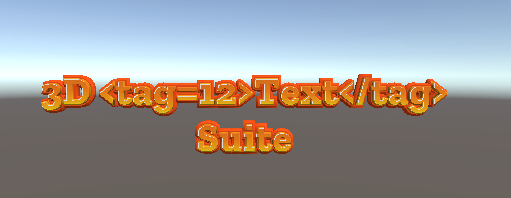
When applying a tag correctly. You will not see the tag text in the 3D Text representation:
correct:

incorrect:
Tags can span across rich text spans:
for example:
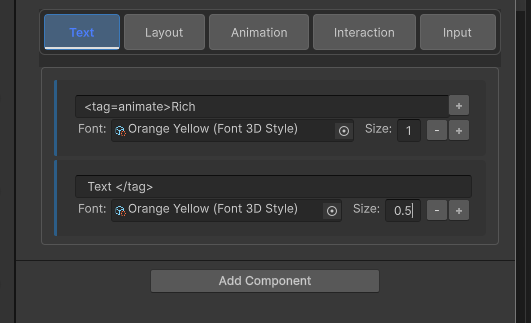
In this example both the words Rich and Text are marked with the tag “animate”
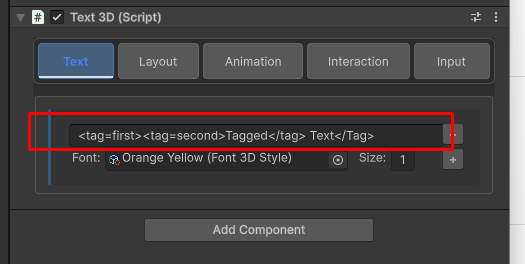
Tags can be nested up to 4 times
Tags can be set via script as well
    void SetText()
    {
        RichTextSpan.Builder build = new RichTextSpan.Builder();
        build.AddSpan(Font1, 2f, "<tag=all><tag=3DText><tag=3D>3D</tag> <tag=Text>T"); //tag animations can be used with both rich and regular text
        build.AddSpan(Font2, 1.5f, "ext</tag></tag>\r\n<tag=Suite>Suite</tag></tag>"); //To animate a tag , go to the inspector and add an animation tag
        //tag names must have at least one letter. <tag=34> is not valid. but <tag=3D> is valid
        //tags can mark text across text spans.
        Text.SetText(build.Build());
    }
Animating Tags
All relevant animation sets have a tag settings option in them. This settings controls which tag the animation affects.
In this example we have the following tagged text:
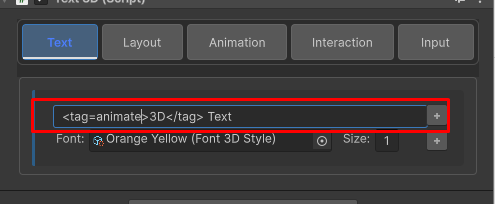
now lets go to the animation tab and add a type in->grow animation:
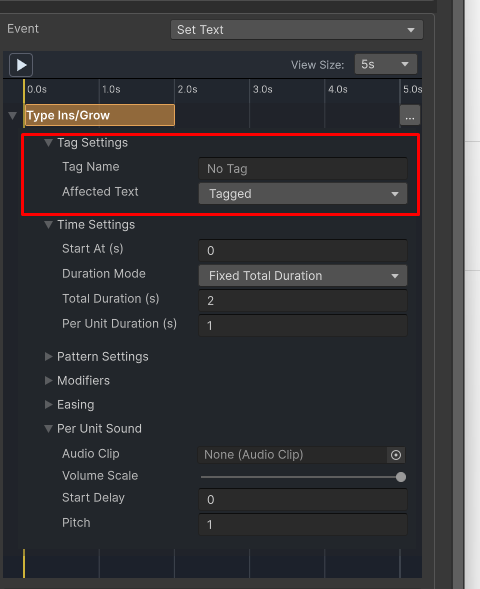
Set the tag name to ‘animate’ (the same name in the tagged text) and click play. Only the letters “3D” are animated.
Now change “Affected Text” to “Everything but Tagged” :
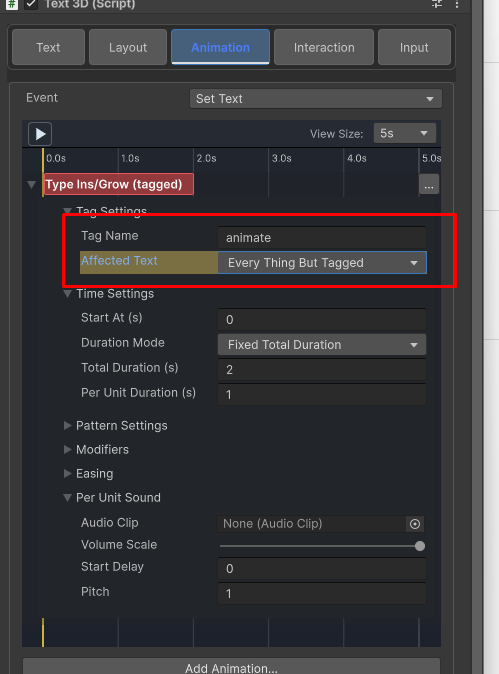
click play. Only the letters of “Text” are animated