Once you understand how the Timeline Ruler works. You can start selecting events and animating them. Core animation events are located under the Animation tab of the Text3D component inspector the core animation events are:
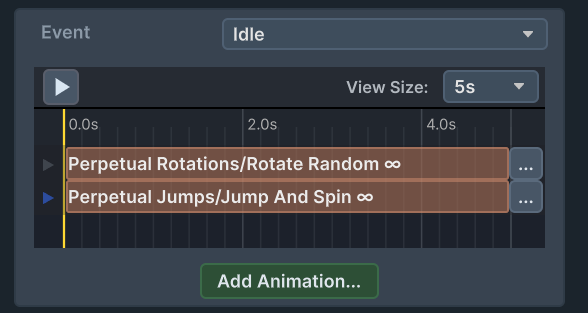
Idle – this is the basic animation event. It animates all the time, and blends with all other animations. You can use this event to add animations that bring life to the text, Such as shivering , waves or hang rotation etc.
Set Text – this event is called when the Text3D game object is created, and when the method SetText is called via script. you can use this event to create effects such as type in events , text grows and rotations. you can also add type outs and shrink to create a full text effect. To see a full text effects see Extras/Example Animations/Full Animations . to see type in effects see Extras/Example Animations/Type ins . you can also have a look at Extras/Tutorial Scenes/3. Set Text
textObject?.SetText(text); // this method sets the text , and animates according to the animation defined in the insepector.
//if you don't want to animate. call textObject?.SetText(text,true); to suppress the animation
Custom Event 1-4 – these events are custom , and will play when you call the Text3D.PlayCustomEventAnimation . you can use these to create customized behaviors. For example , if the user clicks on the text , you can call Text3D.PlayCustomEventAnimation to make an animation feedback. you can also have a look at Extras/Tutorial Scenes/6. Custom Events
// call PlayCustomEventAnimation with the event id
// you can configure the event animation in the inspector under the animation tab
interactiveText.PlayCustomEventAnimation(CustomAnimationEvent.CustomEvent1);