the Timeline Ruler allows you to create, time and blend animations. The timeline ruler appears under the Animation,Interation and Input tabs of the Text3D component. To learn how to create a Text3D component see this section
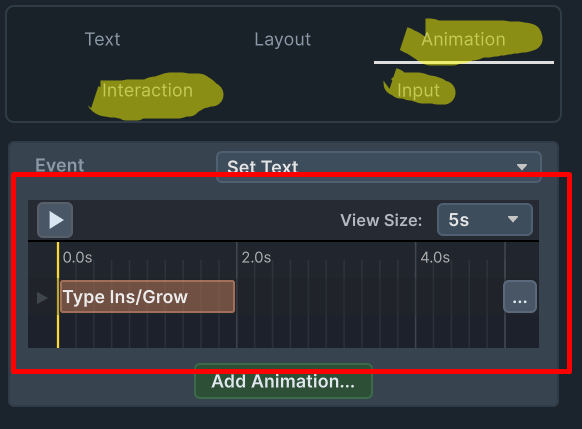
you can select the event for the animation you are designing using the event combobox

to learn more about animation events See the section
Control Animation Timing
you can change the start and duration of the animation by dragging each of the edges of the animation bar.
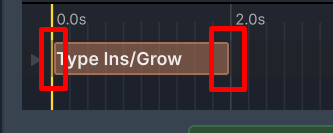
Note that some animations are perpetual , and you cannot change their timing. They are marked with the infinity sign :

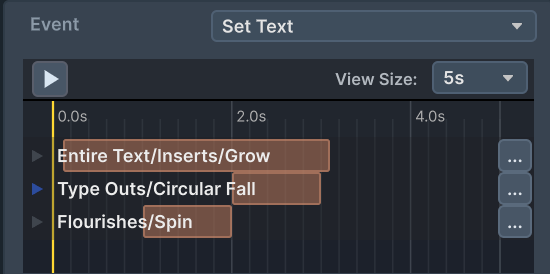
you can position animations on the timeline in what ever way you would like , and create interesting combinations :
Creating a new animation
to create a new animation. click the Add Animation… button in the bottom of the timeline ruler
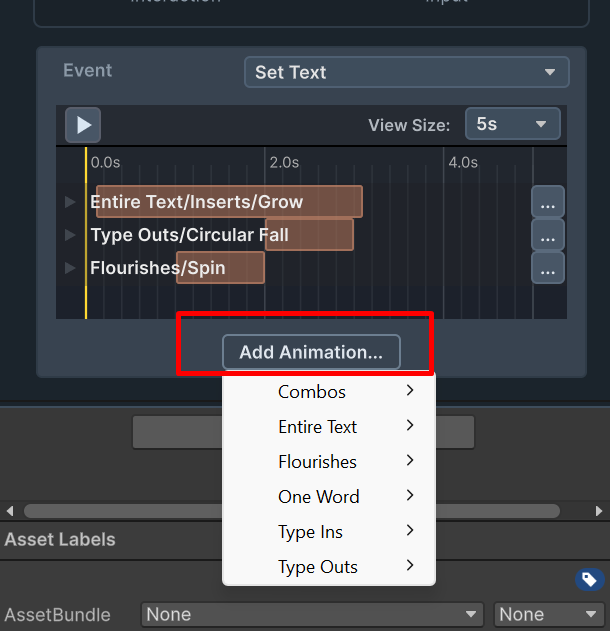
you’ll find that different animation events have different animation options. you can add how many animations you wish.
Organizing the animations
if you click the three dots button to the side of the animation bar. you will find some helpful options
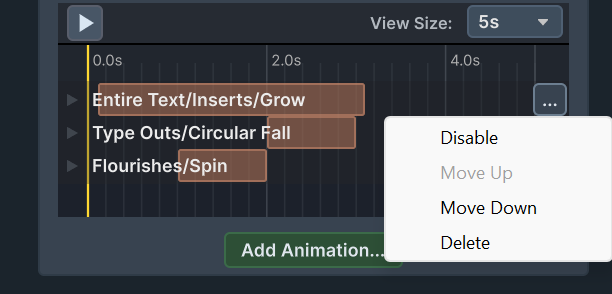
You can Disable/Enable animations. Move them up or down the timeline. Or delete them.
Preview the Animation
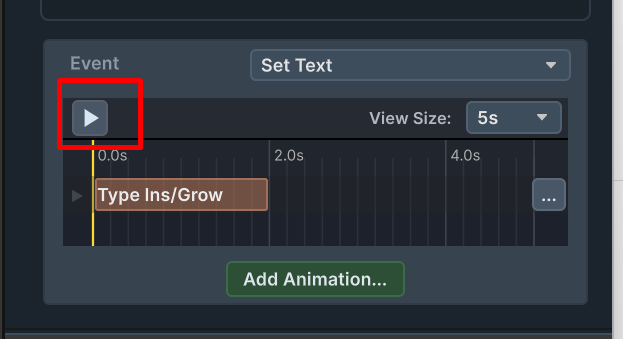
When not in play mode. You can preview the animation you are editing by click the Play/Stop button:
Changing Animation Parameters
to the parameters of an animation. Click on the foldout icon to the right of the animation
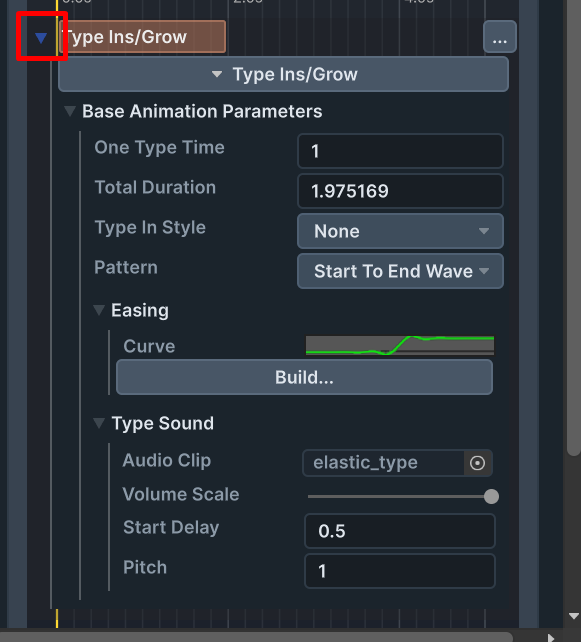
each animation comes with it’s own set of parameters. some parameters control timing, some control directions and patterns, some control dimensions and angle, some control easing options , and some control audio options.