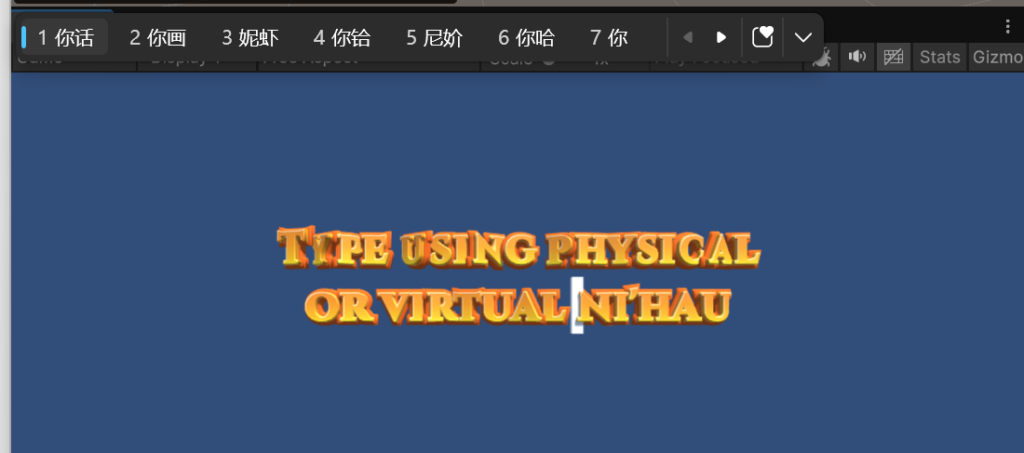
3D Text Studio allows the user to input text using the keyboard. It also supports IME for languages like Chinese , Japanese and Korean. Currently IME is supported only on the platforms that unity supports ( no webgl). the user can type using a physical keyboard or virtual keyboard depending on the device.
After reading this article , you may want to look at the tutorial in Extras/Tutorial Scenes/3. Text Input
How to Accept text input
Create a 3D Text object first. Now go to the input tab in the Text3D Component inspector
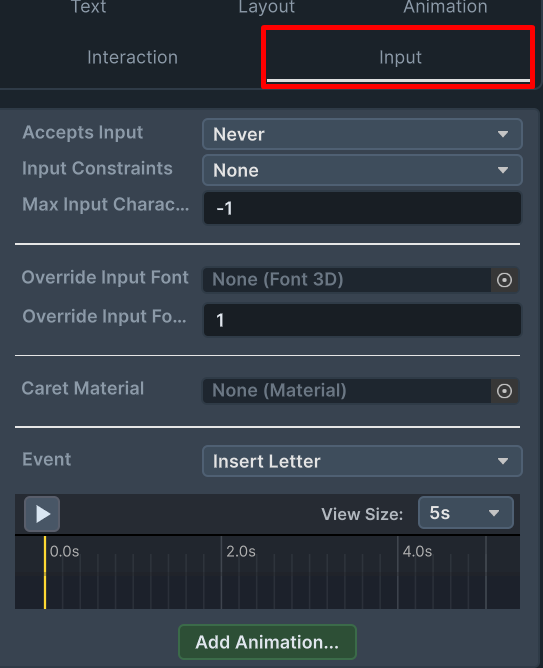
change the Accepts Input property to On Script Focus.
Optionally you can set Input Constraints, Maximum Input Characters and an Override font.
You can also set Input animations
Gaining and loosing Focus
In order to gain and loose focus , you must call Text3D.GainFocus() and Text3D.LooseFocus() from script.
you can call Text3D.GainFocus whenever you see fit. A good example could be when you raycast a user input into the text.
How to recive text changes
there are two ways to recive text change
- Text3D.GetText() Method returns the currently set text on the Text3D object
- use the Text3D.onTextChanged event :
        public void Start()
        {
            inputText.onTextChanged -= TextChanged;// remove the event in case start was called more then one time
            inputText.onTextChanged += TextChanged; // hook the text change event
        }

        private void TextChanged(Text3D obj, string text)
        {
            Debug.Log($"Text Changed:\"{text}\"");
        }
Now Let the user type Text
Text input:

IME example for Chinese