After you have created a Text3D object , you may want to edit the text within it. You may even want to add rich text properties to it. This can be done through both script and inspector. In this article you will learn how to do both.
Notice: for right to left languages such as Arabic and Hebrew , using the rich text features may reverse the order of the text.It may require some extra attention to make these languages work with rich text.
How to create rich text via the inspector
open the Text tab of the Text3D component inspector:
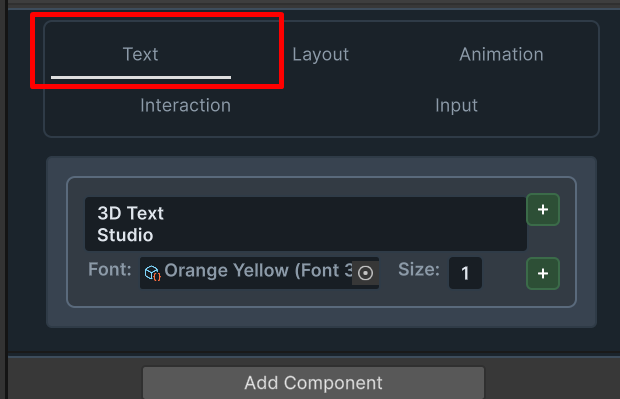
You can add text spans by click the green Plus icons. Click on the bottom one to add a span below the current span:
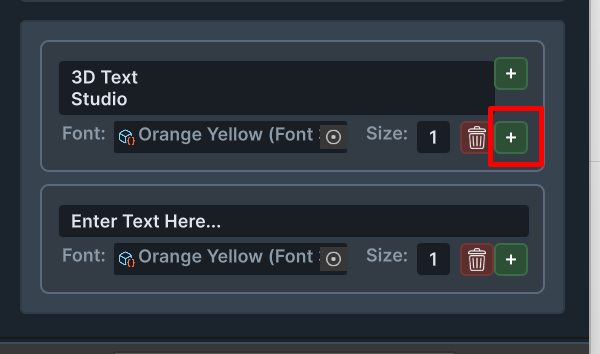
Now you can set the text, font and size of the next span. Let change the font and size of the word “Studio” :
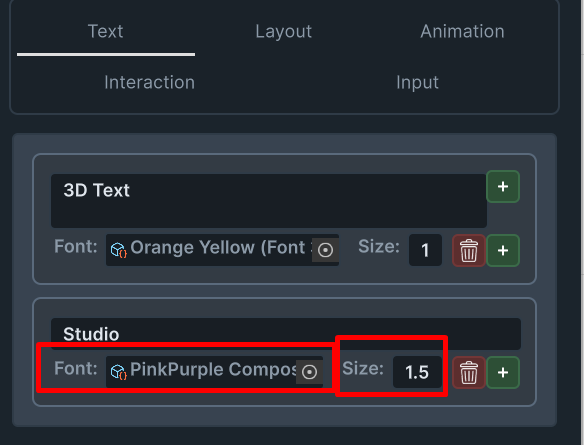
Now look at your game view. You should see this :

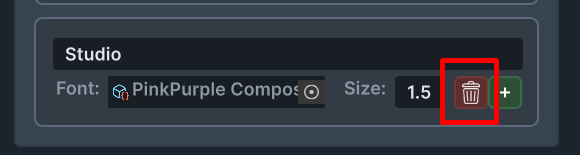
You can always remove spans by click on the red Trash can icon :
How to set text via script
A basic text setup via script can be found in Extras/Tutorial Scenes/1.Set Text
you can set text by calling Text3D.SetText(string) , this method will also animate the text. if you want to supress the animation , you should Call Text3D.SetText(string,true);
Here is an example:
    public class SetTextExample : MonoBehaviour
    {
        public Text3D textObject;
        public string text = "I just called\nset text :)";

        public void ButtonClick()
        {
            textObject?.SetText(text); // this method sets the text , and animates according to the animation defined in the insepector.
            //if you don't want to animate. call textObject?.SetText(text,true); to suppress the animation
        }
    }
result :

How to set Rich text via script
A rich text setup via script can be found in Extras/Tutorial Scenes/2.Rich Text
Setting rich text requires the creation of a RichTextSpan object. You can do this by creating a new RichTextSpan.Builder :
var builder = new RichTextSpan.Builder();now you can call builder.AddSpan(IFont font,float fontSize,string text)
to obtain a font you can expose a public field in your MonoBehavior script:
        public Font3D firstFont; // the first font to set
        public Font3D secondFont; // the second font to set

void ButtonClick()
{
        builder.AddSpan(firstFont, 1.5f,  "I just called"); // first font with size 1.5
        builder.AddSpan(secondFont, 1f, "\nset text :)"); // second font with size 1
        var richText = builder.Build(); // call builder.Build() to get the richTextSpan

        textObject?.SetText(richText); // set the text
}
result: