Once you understand how the Timeline Ruler works. You can start modifying animation parameters and create new and interesting animations. A key component in every animation , is the easing curve. An easing function specified how the animation speed changes over time. you can use easing curves to create animations that fell elastic, bouncy ,shaky , smooth and much more.
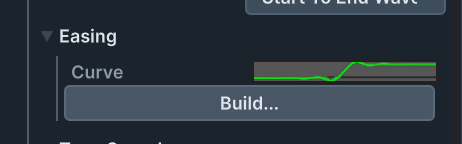
Modify the easing curve directly
click on the green curve object :
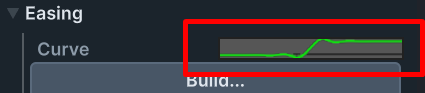
a window opens , you can now select and edit the animation curve :
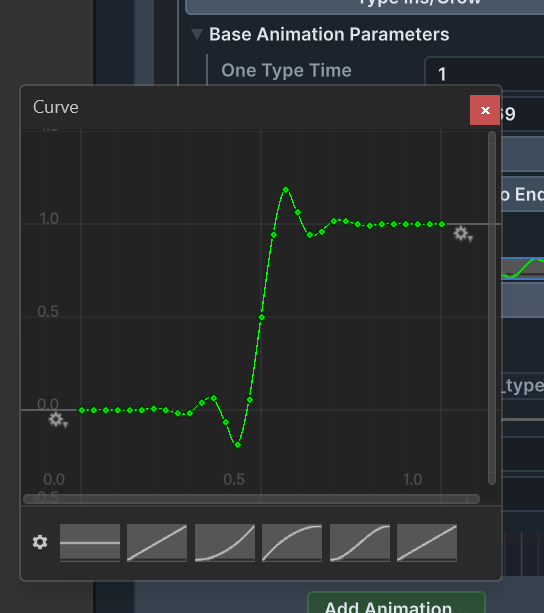
Building an easing curve using prebuilt functions
click the build button
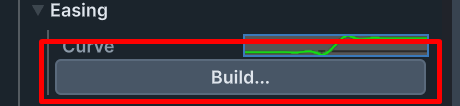
you can now set the affinity of the easing curve (In, Out , In Out) and the underlying easing functions.
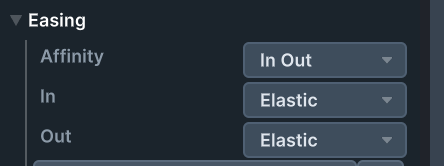
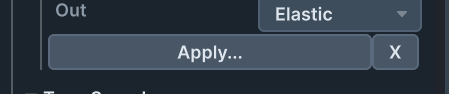
once you are done. click apply
Easing curve refrence
Linear – linear interpolation. each value is mapped to itself
Step – create a step from 0 to 1
Quad – Quadratic interpolation. Create a smoother effect then Linear
Cube – Cubic Interpolation
Sine- Sinus interolation
Expo – Exponential interpolation
Circular
Back – Shoots above 1 and then goes back to 1 at the end
Elastic – Springy fell , shoots over 1 and then goes back to 1 at the end
Bounce – bounces from 0 to 1.
Shiver – shiver that fades to 1
HardShiver – Hard shiver that fades to 1