Once you have create a 3D Text object . you may want it to interact with the scene and with user input. ray casting a text 3d object is useful for selection, hover and gaining focus for text input. Here is how you can do this. you may also want to check Extras/Tutorial Scenes/8. Ray Cast
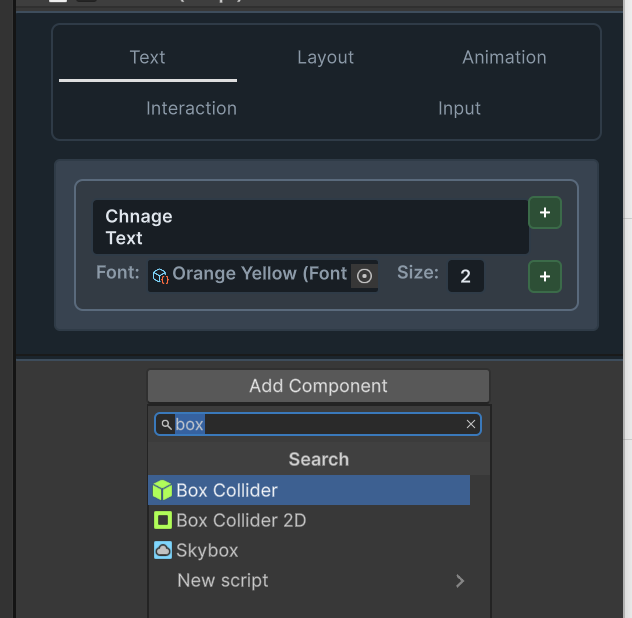
Add A box Collider to your 3D text Object
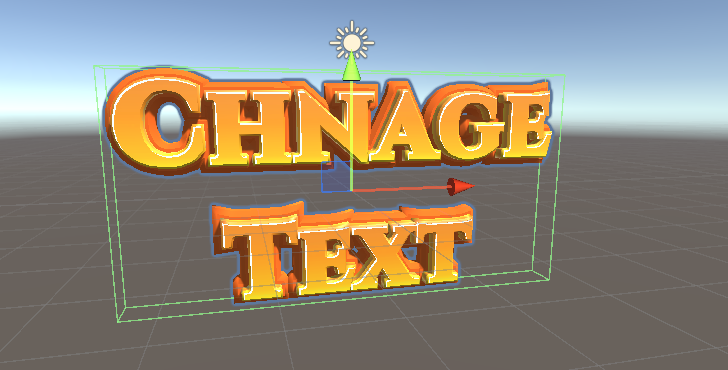
3D Text Studio does the rest. You collider will automatically match the text:
Ray casting the collider
this depends on the input system you are using. However here is an example of how it can be done , on both input systems
the new input system
    Text3D RayCast() //returns null if no Text3D was obtained
    {
        if (Pointer.current == null || Camera.main == null)
            return null;
        Vector2 screenPosition = Pointer.current.position.ReadValue(); // get the screen position of the pointer
        Ray ray = Camera.main.ScreenPointToRay(screenPosition); //based on the main camera
        if (Physics.Raycast(ray, out RaycastHit hit)) // ray cast to find the current object
        {
            GameObject clickedObject = hit.collider.gameObject;
            return clickedObject.GetComponent<Text3D>();
        }
        return null;
    }
    bool HasClick()
    {
        return Pointer.current != null && Pointer.current.press.wasPressedThisFrame;
    }
The old Input system
    Text3D RayCast() //returns null if no Text3D was obtained
    {
        if(Camera.main == null)
            return null;
        Ray ray = Camera.main.ScreenPointToRay(Input.mousePosition); //based on the main camera
        RaycastHit hit;

        if (Physics.Raycast(ray, out hit)) //raycast to find the current object
        {
            GameObject clickedObject = hit.collider.gameObject;
            return clickedObject.GetComponent<Text3D>();
        }
        return null;
    }
    bool HasClick()
    {
        return Input.GetMouseButtonDown(0);
    }
Using the rayCast Code
var text3d = RayCast(); // get the current raycast text3D
if(HasClick() && !text3d.IsFocused) { text3d.GainFocus();}