to learn more about creating 3d font styles. see this page
The HD Offset element is similar to the simple offset element ,only that it contain more advanced features such as smoothing and font surface deformations. It can be used to create effects such as inflated text and chiseled text among others.
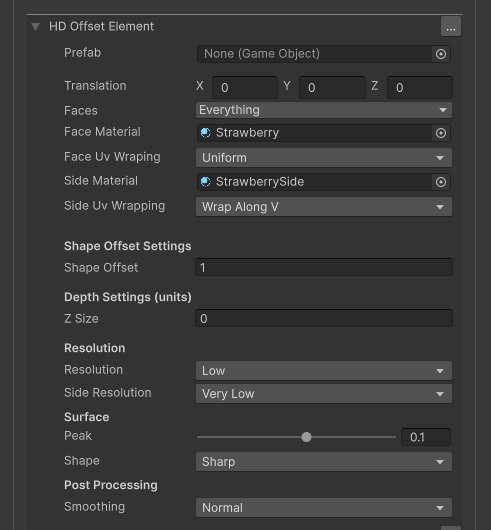
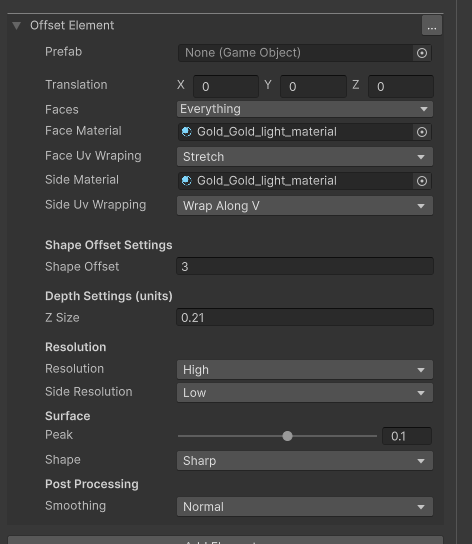
The settings of “HD Offset element”
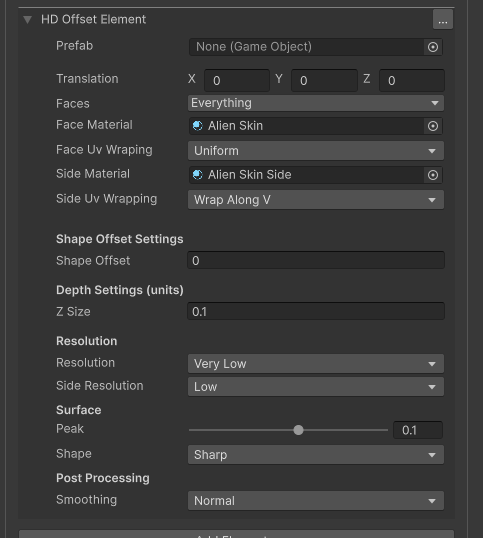
- Prefab – the base prefab for the offset element, all letter will be created with the specified prefab. Leave blank for default
- Translation – the translation of the element within the letter. You can use this to position the element relative to other elements
- Faces – use this to mask some parts of the mesh. For example , you can exclude the backface,sides or front face of the mesh.
- Face/Side Material– Sets the material for the Faces , sides and bevel parts of the mesh
- Face Uv Wrapping –
- Uniform – the same for all letters. Maps the material as a (0,0) to (1,1) square
- Stretch – stretches the material according to the letter size.
- Side Uv Wrapping – choose if you want to wrap sides along the u or v of the material.
- Shape Offset – this is the base offset of the mesh. The larger this value is , the wider the letter and contour are.
- Z Size – the z size (or extrusion amount) for this element.
- Resolution/Side Resolution – Sets the amount of segments for the side and face of the mesh. larger values create high poly meshes ,and sharper appearance (for example chiseled effect). lower values create low poly meshes and a smoother appearance (inflated effect)
- Surface –
- Peak – the peak is the highest point on the face surface. larger values with put more emphasis on the effect
- Shape – you can choose the shape of the face surface. Choose between circular and sharp
- Smoothing – the amount of smoothing to apply to the mesh. note that high values may be slower with dynamic generation
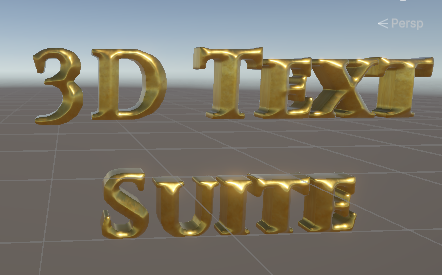
Chiseled effect
go to Extras/Font Packages/Themed/Gold/High Poly – Gold Sharp
Inflated Effect
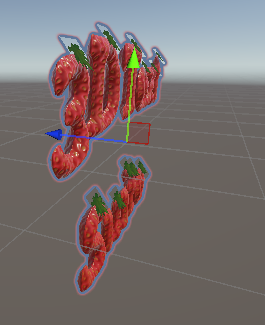
go to Extras/Font Packages/Themed/Fruity/Strawberry HD