to learn more about creating 3d font styles. see this page
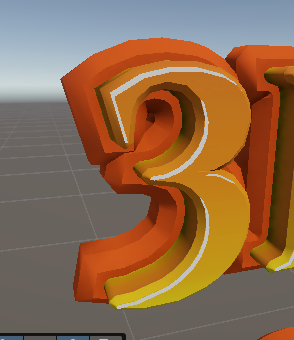
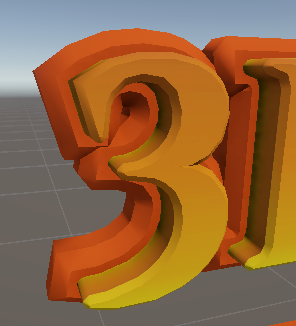
The highlight font element is used to complement a font style using a “highlight” effect:
with highlight :
Without highlight
The settings of “HighLight element”
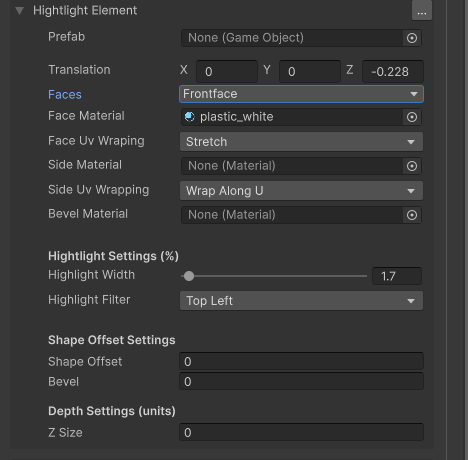
- Prefab – the base prefab for the offset element, all letter will be created with the specified prefab. Leave blank for default
- Translation – the translation of the element within the letter. You can use this to position the element relative to other elements
- Faces – use this to mask some parts of the mesh. For example , you can exclude the backface,sides or front face of the mesh.
- Face/Side/Bevel Material – Sets the material for the Faces , sides and bevel parts of the mesh
- Face Uv Wrapping –
- Uniform – the same for all letters. Maps the material as a (0,0) to (1,1) square
- Stretch – stretches the material according to the letter size.
- Side Uv Wrapping – choose if you want to wrap sides along the u or v of the material.
- Highlight Width – the width of the highlight feature
- Highlight Filter – sets the direction of the highlight. Top,Bottom,Left,Right,BottomLeft,BottomRight,TopLeft,TopRight
- Shape Offset – this is the base offset of the mesh. The larger this value is , the wider the letter and contour are.
- Bevel – the bevel amount for this element
- Z Size – the z size (or extrusion amount) for this element.
Real Life Example
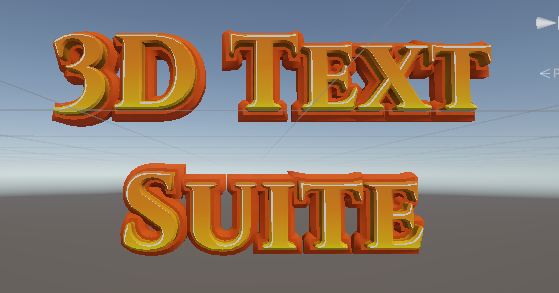
The main font of 3D Text Suite font in Basics/Main3DFonts/orange yellow uses the highlight element: