While 3D Text Suite is highly optimized, it still renders individual 3D letters, and uses draw calls for each letter. In this article, you will learn how to maximize the asset’s performance, and reduce draw calls and generation times.
You may also want to look at Basics/Tutorials/Runtime Baking
Deafult option: Dynamic Generation
By default , all letters of a 3D Font Style are created on the fly. As long as the vertex count of your style is reasonable this should pass seamlessly to the user. however if you are creating large amounts of text at once , or if you are using low end planforms this may cause performance spikes.
Whole Text baking
If you wish to get the maximum performance, and the text your rendering is static. You can bake the whole text object.
To bake a 3d text object at build time , click on the text3d component context menu and select Bake to Single Mesh (note that this will destroy the 3d text component).
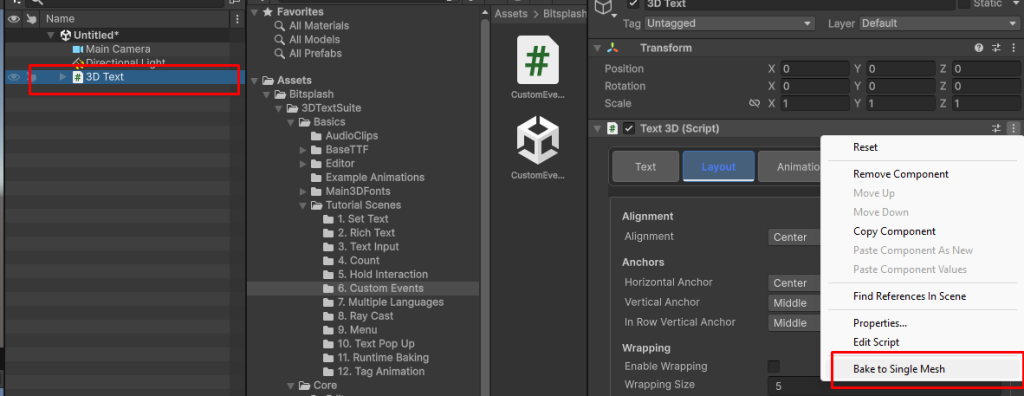
After baking you’ll get a 3D Mesh renderer that renders the text. Reducing draw calls to the essential minimum.
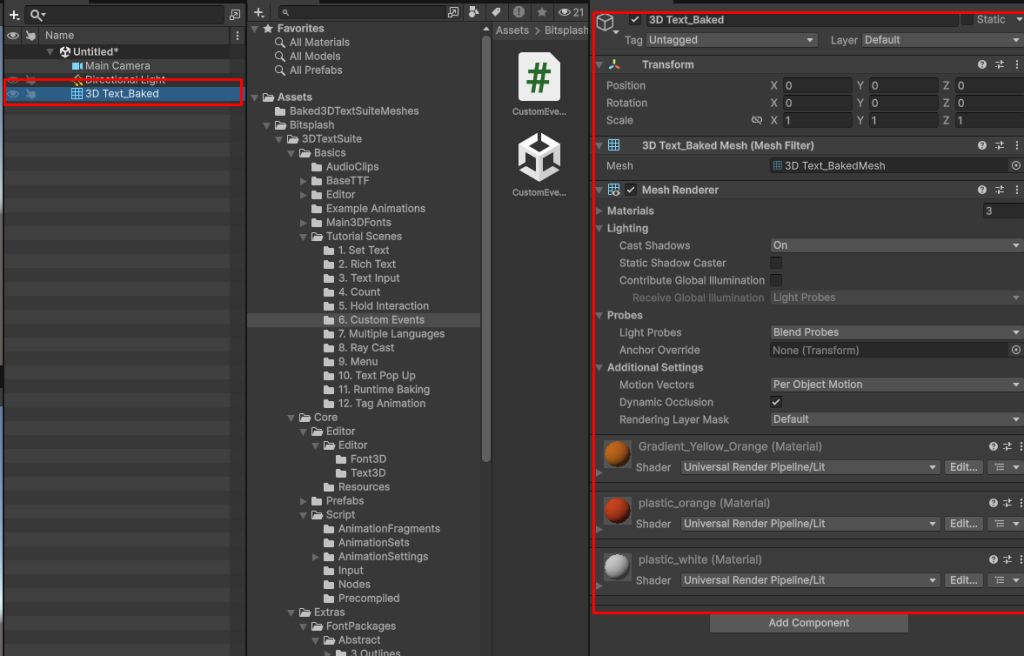
The baked mesh is stored in Assets/Baked3DTextSuiteMeshes
You can also bake a 3D Text object via script:
text3D.SetText("Baked Text");
GameObject bakedText = text3D.BakeToSingleMesh();
// you can also do something with bakedText.
Font Style Baking
You can’t always bake each and every text you create. You can’t for example bake a dynamic animated text, or bake a very long text. In these cases you can bake the font style. Baking the font style essentially creates the letter meshes in advance , so they are not dynamically generated on the fly. You can choose which letters and terms to bake:
Go to the Baking tab of a font style:
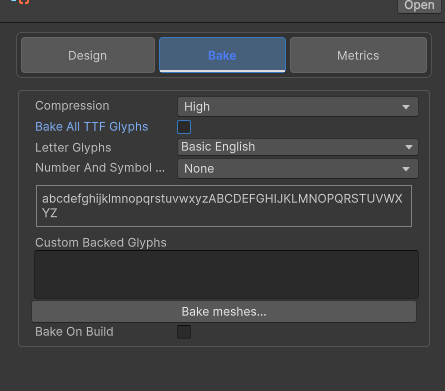
Here you can choose which letters are baked.
- Compression – for build time baking , this sets the mesh compression amount of the baked meshes. Choosing High reduces build size
- Bake All TTF Glyphs – if true, All the letters in the underlaying TTF file are baked. Note that depending on the TTF file , this can make the build size bigger.
- Letter Glyphs/Numbers And Symbols – allow you to quickly choose common glyphs and symbols from multiple languages
- Preview – shows the letters that are baked using the current settings
- Custom Baked Glyphs – You can paste here any string term that you want baked. for example if you only want to bake the Term “3D Text” and not all English letters. simply set Letter glyphs to none , and write “3D Text” in this text box.
- Bake On Build – will cause 3D Text Suite to automatically bake the font when you build you project.
- Bake Meshes – This button triggers mesh baking imidiatly
Font Style Baking From script
If you wish to keep you build size small. You can also bake the font during Game Loading, by simply calling these methods:
public IFont3D toBake; //assign this in your monobehaviour inspector
...

toBake.BakeString("3D Text"); // bakes all letters in the term 3D Text
// alternativly
toBake.Bake(); //bakes all letters defined in the Bake tab settings
Reducing Polygon count
One major aspect of performance is polygon count. Especially on low end devices. Here are some ways you can reduce the polygon count of the generated 3D Text meshes.
Tweak the font styles contour options in the font styles design tab:
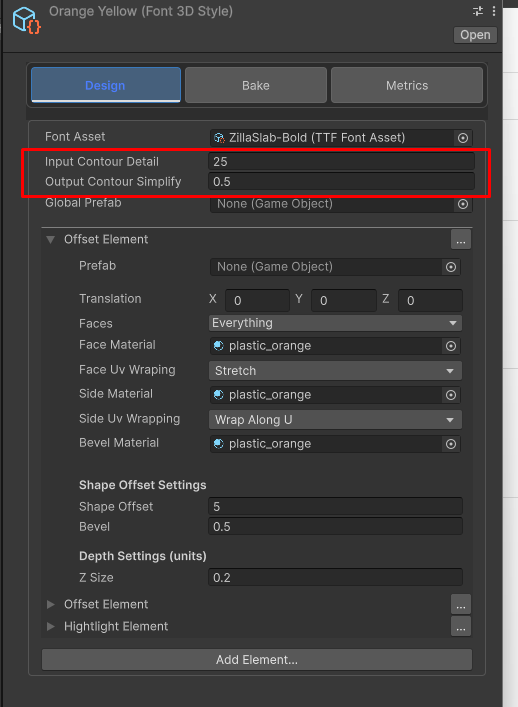
Input Contour Detail – the higher this value is, the more accurate the contours. However the higher this value is , the more time it takes to create a 3d mesh
Output contour simplify – higher values make the generated mesh less detailed , and with less vertices. lower values make the mesh vertex count higher , and the 3d mesh smoother.