After creating your first 3D Text go the layout tab
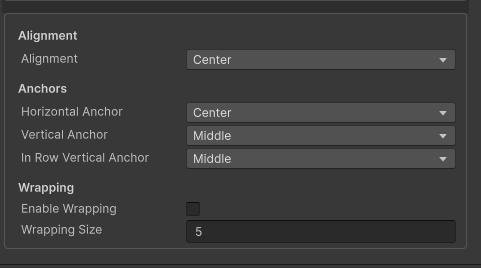
Alignment
Allows you to align the text to left , center or right
Anchors
Anchors determine where the text is positioned relative to the unity Transform position
- Horizontal Anchor –
- Left – The text is positioned so that the leftmost point of the text is on the game object transform’s X position
- Right – The text is positioned so that the rightmost point of the text is on the game object transform’s X position
- Center – The text is positioned so that the center point of the text is on the game object transform’s X position
- Vertical Anchor –
- Upper – The text is positioned so that the uppermost point of the text is on the game object transform’s Y position
- Lower – The text is positioned so that the lower point of the text is on the game object transform’s Y position
- Middle – The text is positioned so that the center point of the text is on the game object transform’s Y position
- In Row Vertical Anchor – When using rich text , where the font size may not be the same along the row , this setting determines where the inner parts of the row anchor to.
Text Wrapping
- Enable Wrapping – if true , wrapping is enabled for the 3D Text object.
- Wrapping size – This maximum size of a row. Any rows that exceed this size are wrapped. The size is specified in unity units. This setting takes affect only when Enable Wrapping is true